Share Books with Colleagues
There are two reasons you may wish to share a Bloom book with a colleague:
Share for Viewing
Bloom provides multiple ways to share your book with others for viewing or reading purposes.
See Publishing.
Share for Editing
The primary method for collaborating with colleagues on Bloom books — i.e., sharing in the actual editing of these Bloom books — is by using Bloom’s Team Collections feature. This feature requires a Bloom Subscription.
If, however, you do not have a Bloom Subscription, you will not be able to use that feature. In this case, you can still share a book with a colleague, but you will have to do so “manually”.
When sharing books outside of a Team Collection, you will need to manage book ownership within your editing team, and you will need to keep track of which team member has the latest copy of each book.
It is important to understand that a “Bloom book” is actually a collection of many files housed under a “book” folder. In fact, some book folders may contain hundreds of individual files. If you wish to share a particular Bloom book with another person for editing, you must share the entire book folder and its contents with them.
Share Using Windows File Explorer (Bloom 6.3 or older)
To access that folder, you must:
- Right-click on the book’s thumbnail.
- Click Show in File Explorer.
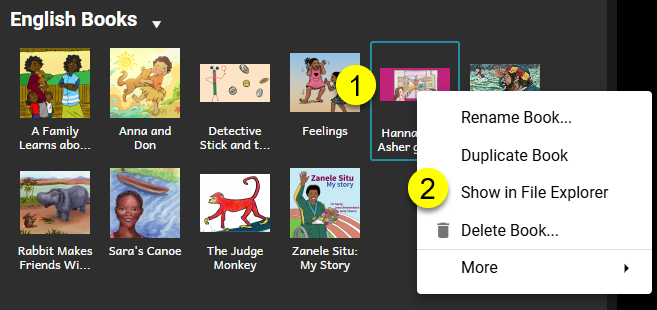
You can now copy the entire book folder and share it with your colleague. If the book folder already exists on your colleague’s computer, then they must replace it with the new, more up-to-date copy.
Remember: you and your colleague must keep track of who has the latest copy of this book. Also, keep in mind that each Bloom book has a unique book ID. See this article.
Share using BloomSource File (Bloom 6.4+)
Starting with Bloom 6.4, you can share a book by saving it as a .bloomSource file and giving that to your colleague:
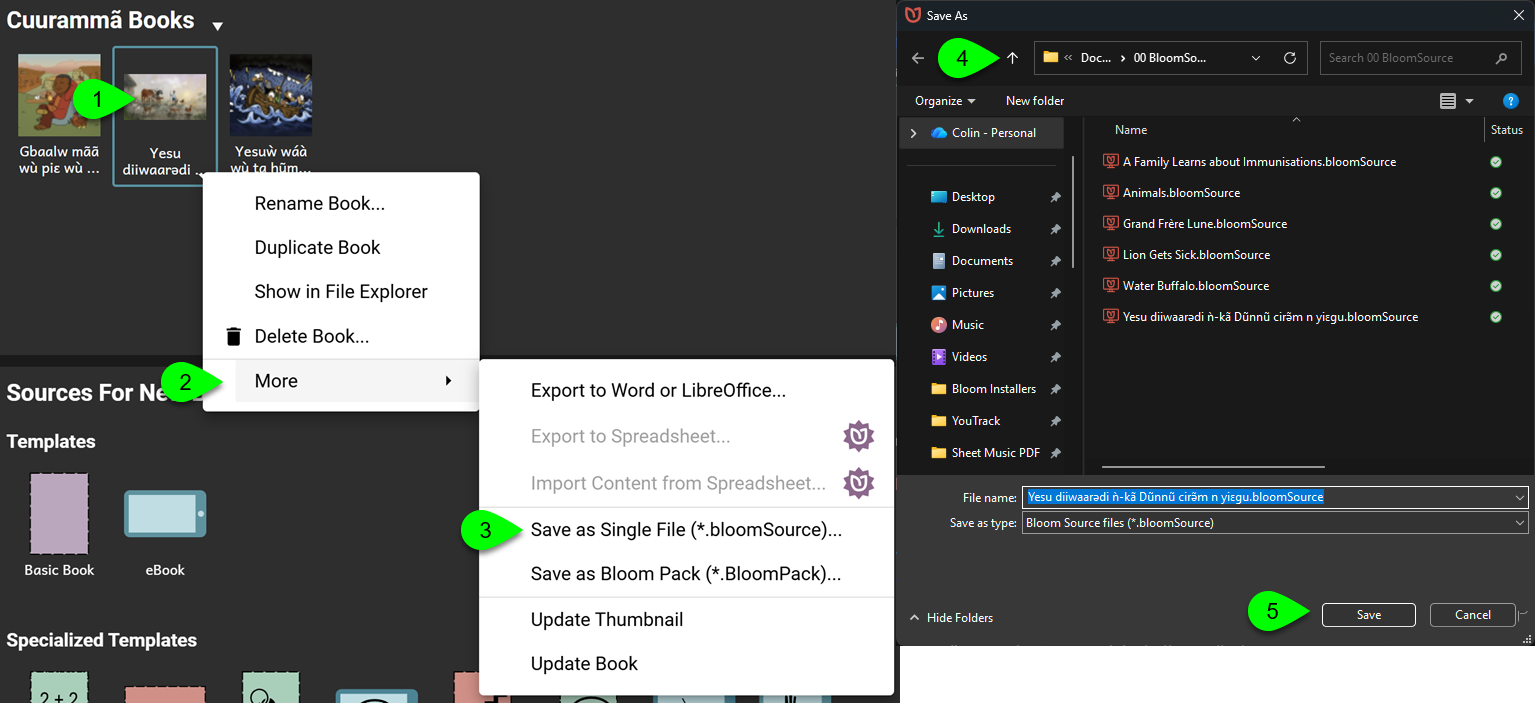
- Right-click on the thumbnail of the book you wish to save.
- Click More.
- Save as Single File (*.bloomSource).
- Choose a file location.
- Click the Save button.
Give this file to your colleague who can import it into their collection:
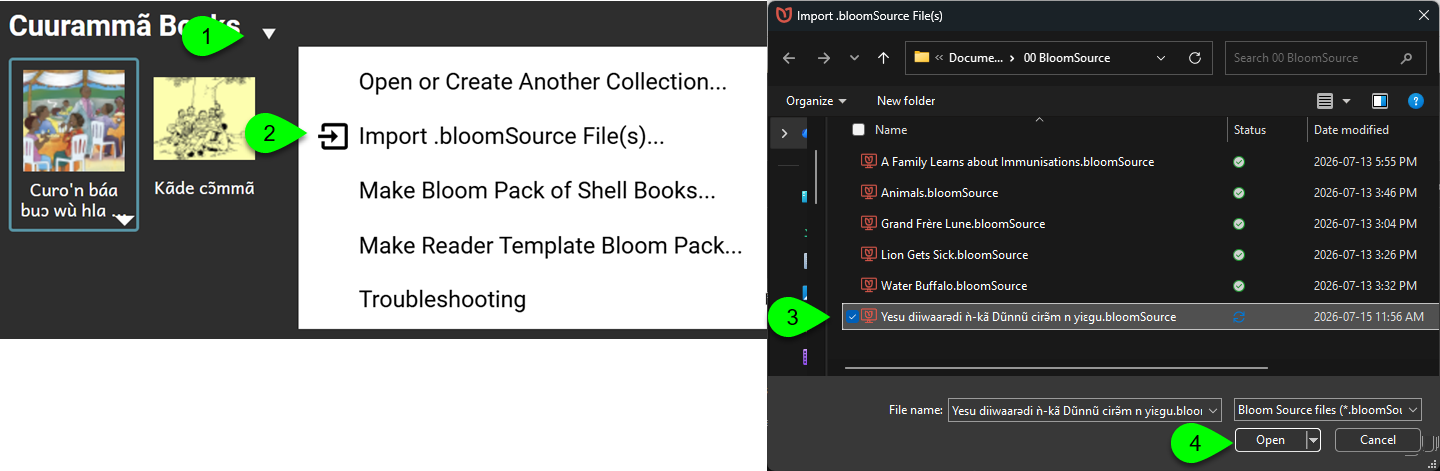
- Click the down-arrow which appears after your collection name.
- Click Import .bloomSource File.
- Choose a .bloomSource file .
- Click Open.