Hyperlinked Table of Contents
Larger books, such as this picture dictionary (print) or this digital version of the same book, can greatly benefit from a Table of Contents.
Text-Based Table of Contents
Traditionally, a table of contents is a text-based list of titles like this example:
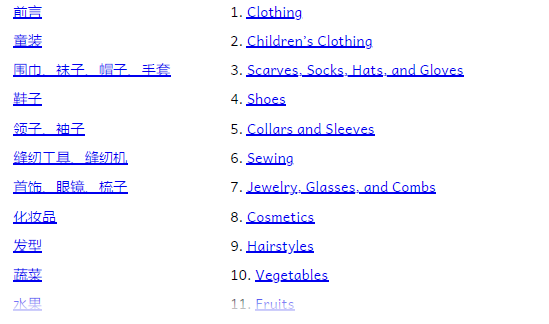
Image-Based Table of Contents
In addition to the above text-based Table of Contents, Bloom provides an image-based alternative as in the following example:
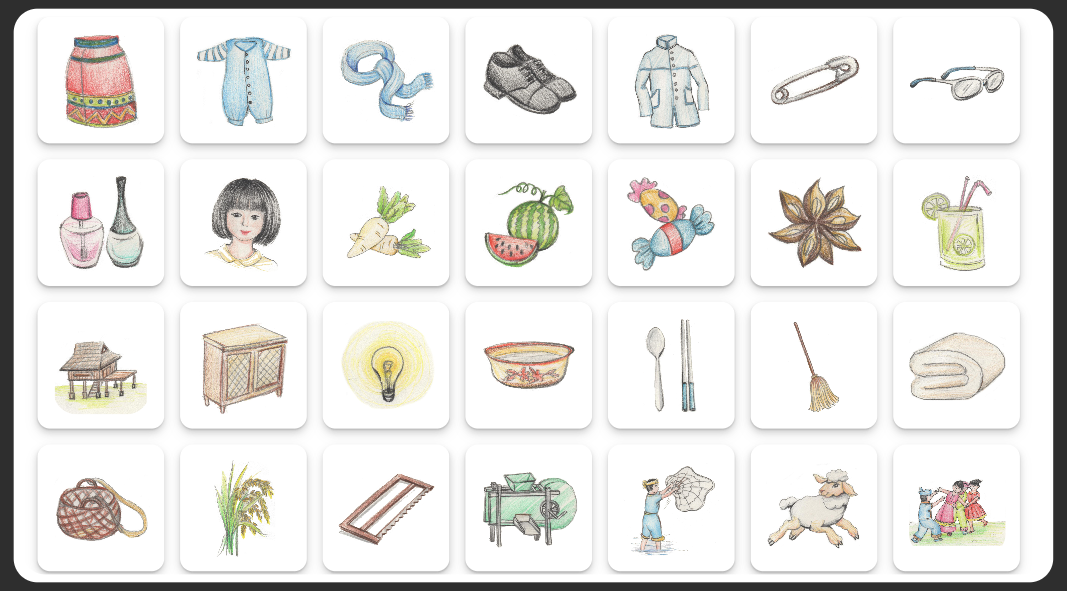
Each image links to a section in this book. For a trilingual picture dictionary, this is a more compact way to present a Table of Contents, since no language is needed.
Tutorial Guide for a 2-column, 2-language Table of Contents
As seen in the above image, this table of contents has two columns. The left column is in Chinese, and the right column is in English.
Step 1: prepare the page
- Add a “Just Text” page.
- Add a second column using the Change Layout.
- Using Text Box Properties, select the language for each column.
- Add the text for your table of contents for each language. Each entry should be a separate paragraph. If desired, each entry can be numbered manually.
- Add spacing between paragraphs if needed.
Step 2: add hyperlinks
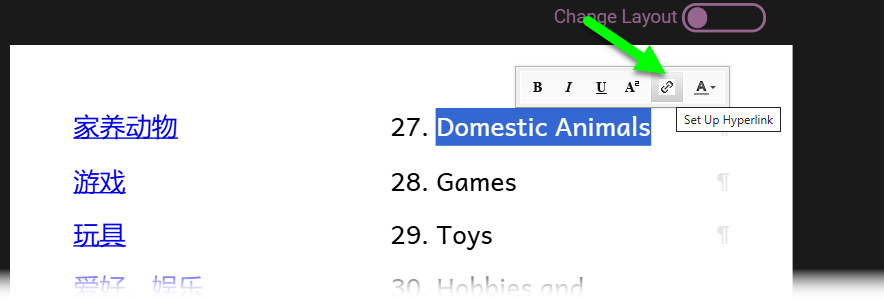
Select the text of each entry and click on the hyperlink button
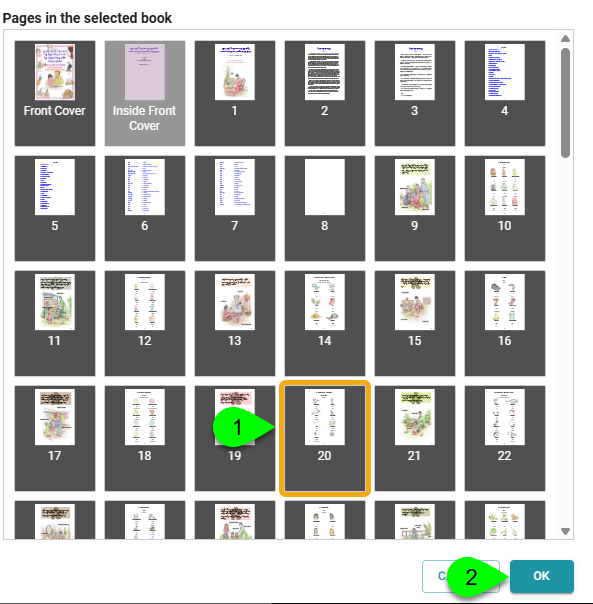
- Select the page.
- Click OK.
Tutorial Guide for Image-Based Table of Contents
- Open the Canvas tool.
- Open Navigation.
- Drag a navigation image to the canvas on your page.
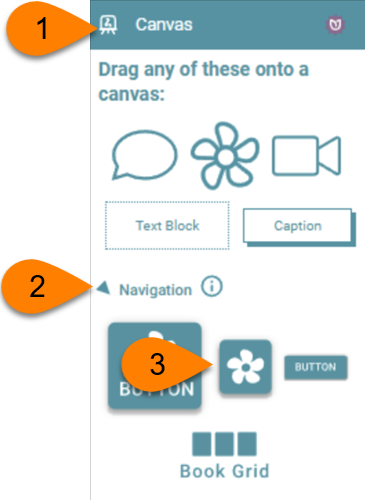
Once you have the images on your page, add the hyperlink to each image.
- Select the image.
- Click
… - Select Set Destination.
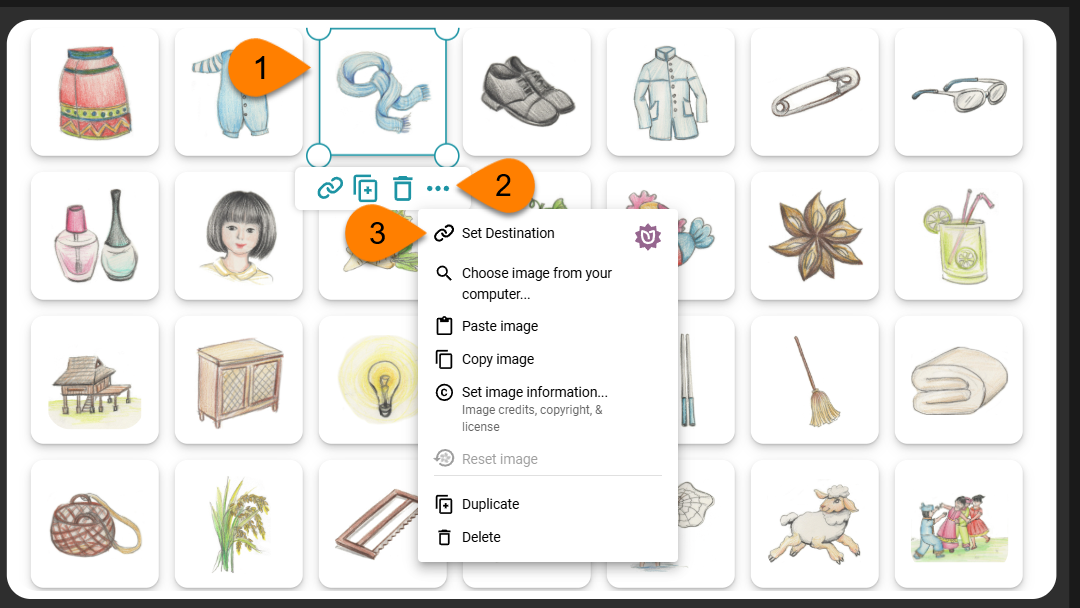
The Choose Link Target will appear. On the right side are thumbnails of all the pages in the selected book. Choose a page and click OK.