Apply direct formatting
In Bloom, named styles help you define how the words in text boxes appear.
Additionally, you can apply direct formatting to specifically selected characters or words.
-
Select one or more characters, or one or more words.
The direct formatting panel appears in the upper right corner of that text box.
-
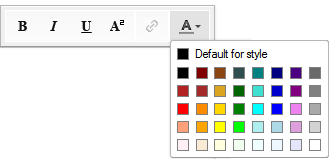
In the panel, click B (bold), I (italic), U (underline), or A2 (superscripted) or
 (color).
The selection changes to show that direct formatting or you can choose a color for the selected text.
-
To remove the direct formatting, select the characters or words again, and then click B (bold), I (italic), U (underline) or A2 (superscripted) in the panel. Or click Automatic to remove the color.
Tip
Here are examples of the direct formatting panel:
-
 — no formatting.
 -
 — formatted.
 -
 This example shows
  (Paste Hyperlink). It is a Bloom Enterprise feature.
 -
This example shows the color chooser with the color pallet displayed.