Table of Contents
Larger books, such as this picture dictionary, can greatly benefit from having a table of contents. And when reading or consulting such books online, it is highly useful when each entry includes a hyperlink to the appropriate section.
Tutorial Guide for a 2-column, 2-language Table of Contents
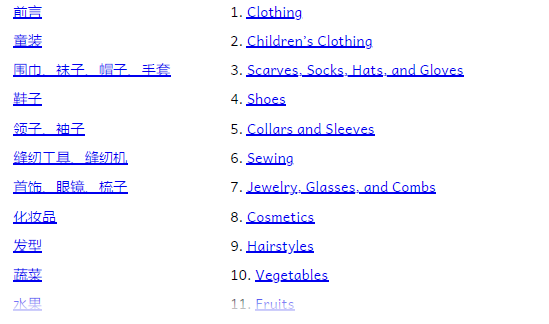
As seen in the above image, this table of contents has two columns. The left column is in Chinese, and the right column is in English.
Step 1: prepare the page
- Add a “Just Text” page.
- Add a second column using the Change Layout.
- Using Text Box Properties, select the language for each column.
- Add the text for your table of contents for each language. Each entry should be a separate paragraph. If desired, each entry can be numbered manually.
- Add spacing between paragraphs if needed.
Step 2: add hyperlinks
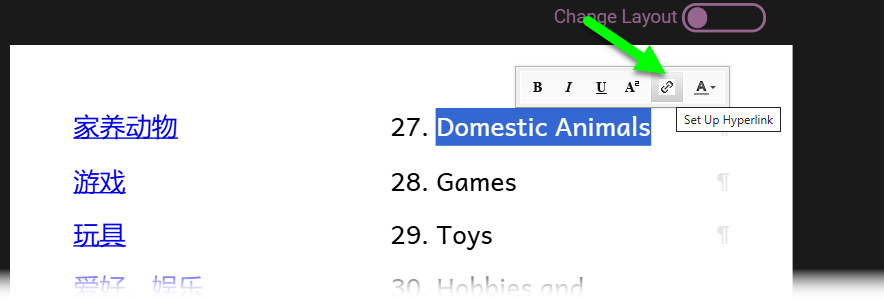
Select the text of each entry and click on the hyperlink button
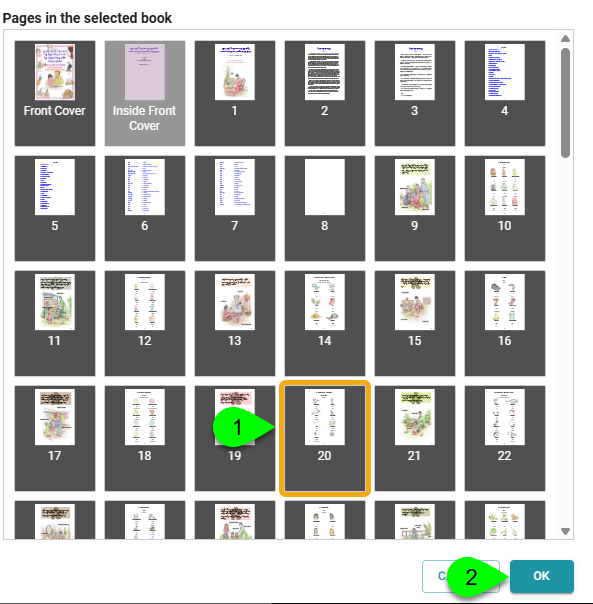
- Select the page.
- Click OK.