Changing Dropbox Tiers or Accounts
Changing your Dropbox subscription tier or your Dropbox account can cause havoc for a Bloom Team Collection.
If a member of a Bloom Team Collection finds themselves needing to change their Dropbox subscription (e.g. changing from a family plan to an individual plan), then this can cause havoc for a Team Collection.
In particular, if you are downgrading and your current usage exceeds the new, smaller plan's limit, file syncing will stop until you bring your account under the quota.
Likewise, changing Dropbox accounts can cause havoc. Depending on how you install Dropbox, you may inadvertently create a duplicate Team Collection that is, in fact, totally disconnected to the original collection. This will prevent you from collaborating with your colleagues.
Instructions for non-administrators
If you are not the owner of the Team Collection, but you are a member, please follow the following steps:
- Before you switch Dropbox plans, Check In all books previously checked out to you.
- Under Documents/Bloom, delete the entire collection.
- Under Dropbox, delete the corresponding "- TC" folder. (See important note below.)
- Switch Dropbox plans in your Windows Dropbox app.
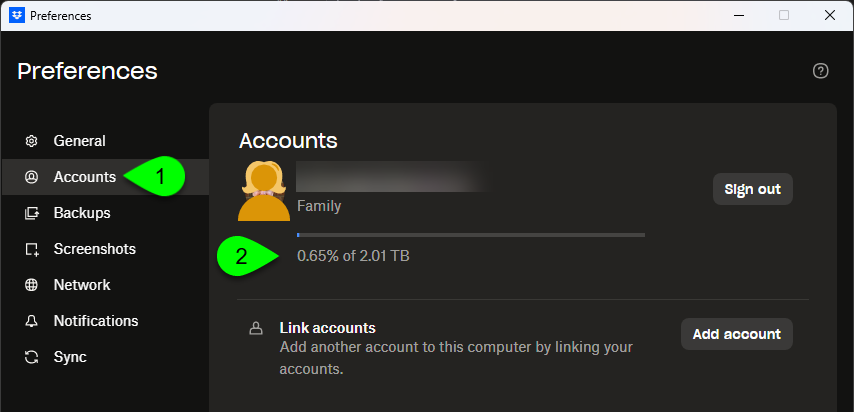
- In the Dropbox app, click on Accounts, and ensure that you are well within your quota limits. If you are not, you will need to remove some files and folders from your Dropbox account.
- If you switched Dropbox accounts (i.e. a new email associated with the Dropbox), your Team Collection administrator will need to add your email to share list for the collection.
- Add the shared Dropbox folder to your computer.
- Re-join the Team Collection by double-clicking on the file "Join this Team Collection.JoinBloomTC".
Important note for Step 3: when deleting a Dropbox folder from your computer, there are two types of dialogs depending on whether you are the owner, or if someone else is the owner.
If you are the owner of a Dropbox folder, then when you delete that folder, you are shown the following:
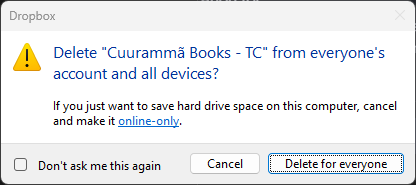
If you see this dialog in step 3, STOP immediately. This means that you are the owner/administrator of the collection, and the above procedure applies only to non-administrators.
If you are not the owner, you will see a dialog like this:
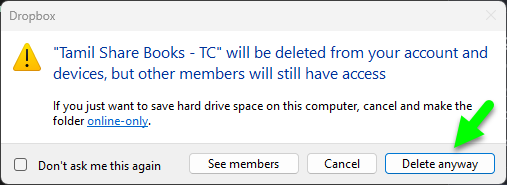
Choose "Delete anyway".
Instructions for Administrators
If you are the administrator for the Team Collection and you downgrade your subscription tier, then you will need to ensure you remain within your quota.
If you are the administrator of a Team Collection, and you need to change accounts, then your Bloom team will need to start over completely. This is a difficult procedure and we do not recommend it.
Here is a sketch of what would need to happen:
- All members of the collection will need to check in their books and stop working on the collection.
- Delete the Dropbox “- TC” folder for the collection.
- Switch Dropbox accounts and manage your folders.
- In the collection folder in Documents/Bloom, delete the file “TeamCollectionLink.txt”.
- Open the collection in Bloom. Go to Settings > Project Information, give the collection a new name. This is not essential, but it will help avoid potential confusion going forward.
- Start over with the original procedure to make this collection into a team collection.